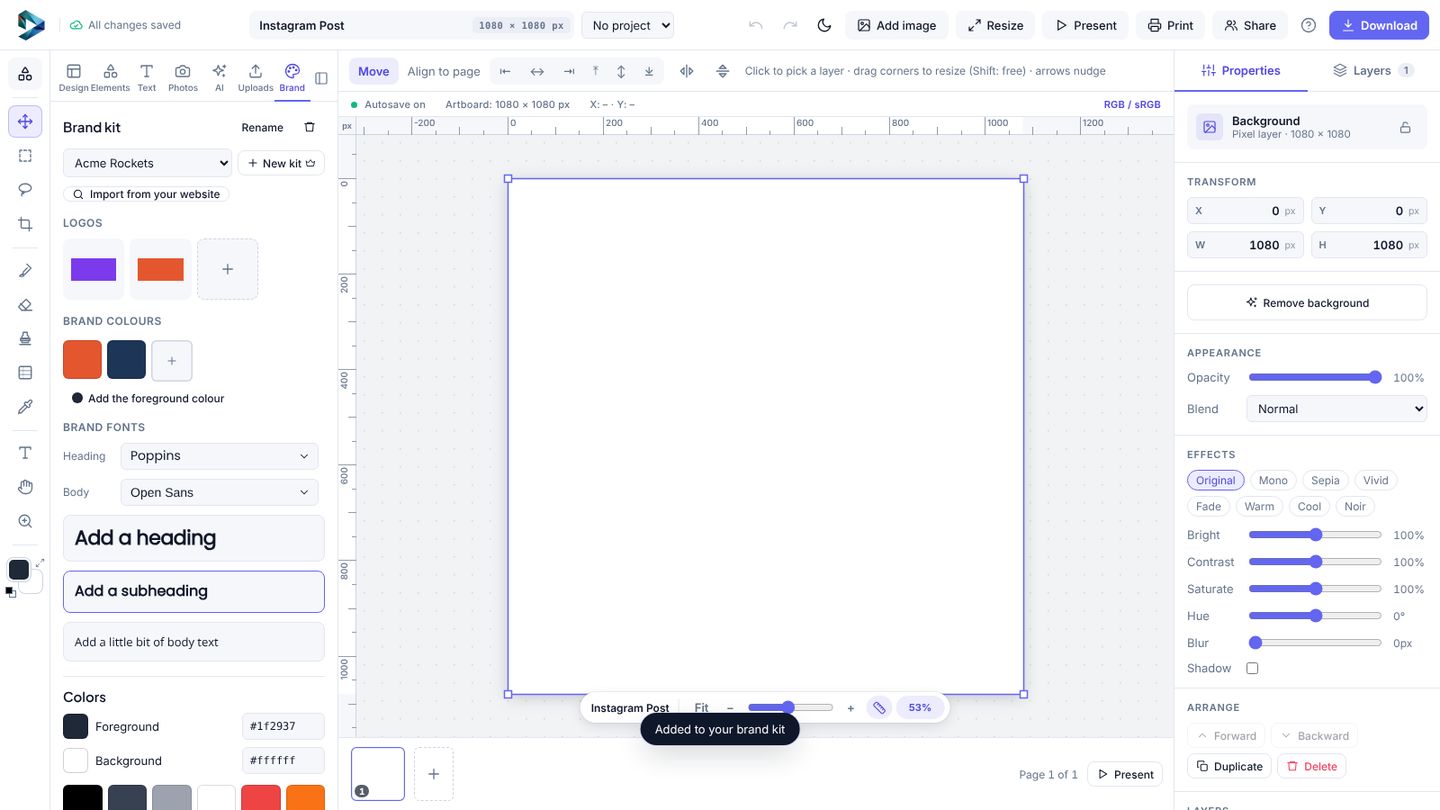
Your brand kit keeps your logos, colours and fonts ready in every design.
- In the editor open the Brand tab.
- Click Import from your website and type your site's address. NXPixels suggests the colours, logos and fonts it finds. Tick the ones you want and click Add.
- Add anything missing yourself: upload logos (PNG, JPG, WebP or GIF up to 5 MB, 20 per kit), add up to 24 colours, and pick a heading and body font.
Using it
- Click a logo to add it to the page.
- Click a brand colour to make it your foreground colour; right-click for the background colour. Brand colours also show when you colour text.
- Brand fonts are listed first in every font menu, and the Text tab gets Brand text buttons.
The free plan has one kit. Teams has up to 10, for example one per client.