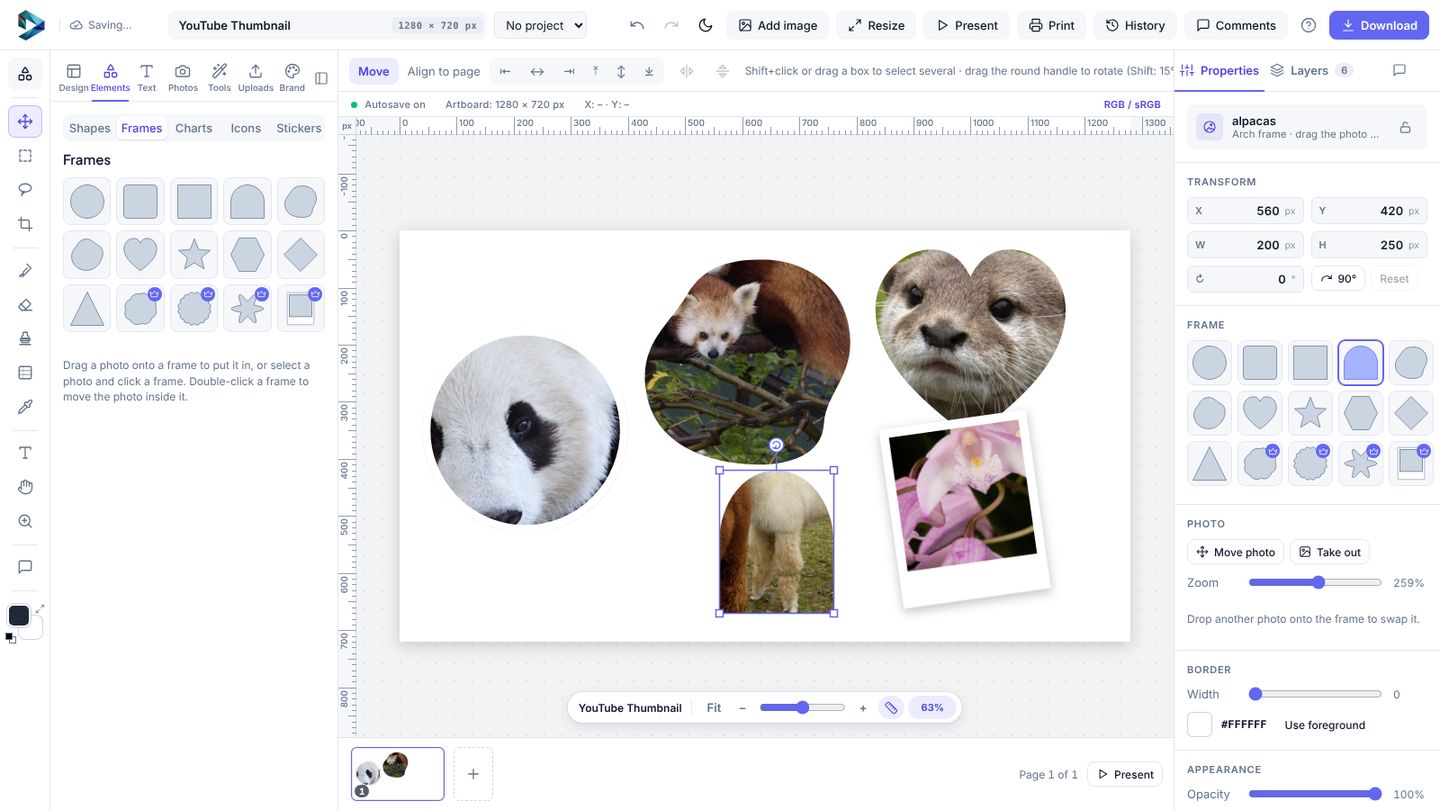
Frames show a photo cut to a shape. There are 36, from circles and arches to instant photos, stamps, film strips and phone screens.
- Open Elements → Frames and click one.
- Drag a photo layer onto the frame (it lights up) and let go. Or select the empty frame and click a photo in Photos or Uploads.
- Double-click the frame to choose which part of the photo shows: drag it around and use Zoom. Press
Escwhen you're done.
Extras
- Border adds a line in any colour inside the outline.
- Take out turns the photo back into its own layer.
- Right-click a photo → Put in a circle frame is the quickest way to a round profile picture.
Twelve frames (including all the cards) are part of Teams.